Choose the right level of organization
A profile is a separate saved world with its own favorites, reference timezone, clock format, and favorite filters. Use profiles for distinct setups, such as work and friends. Language is shared across the app.
A group is a label on favorites within one profile, such as London team. Each favorite can have one group or be Ungrouped. Groups help you filter a world; they do not create another profile or copy its favorites.
The orbit also stacks favorites that share a timezone. Those automatic timezone stacks are separate from the groups you name and manage.
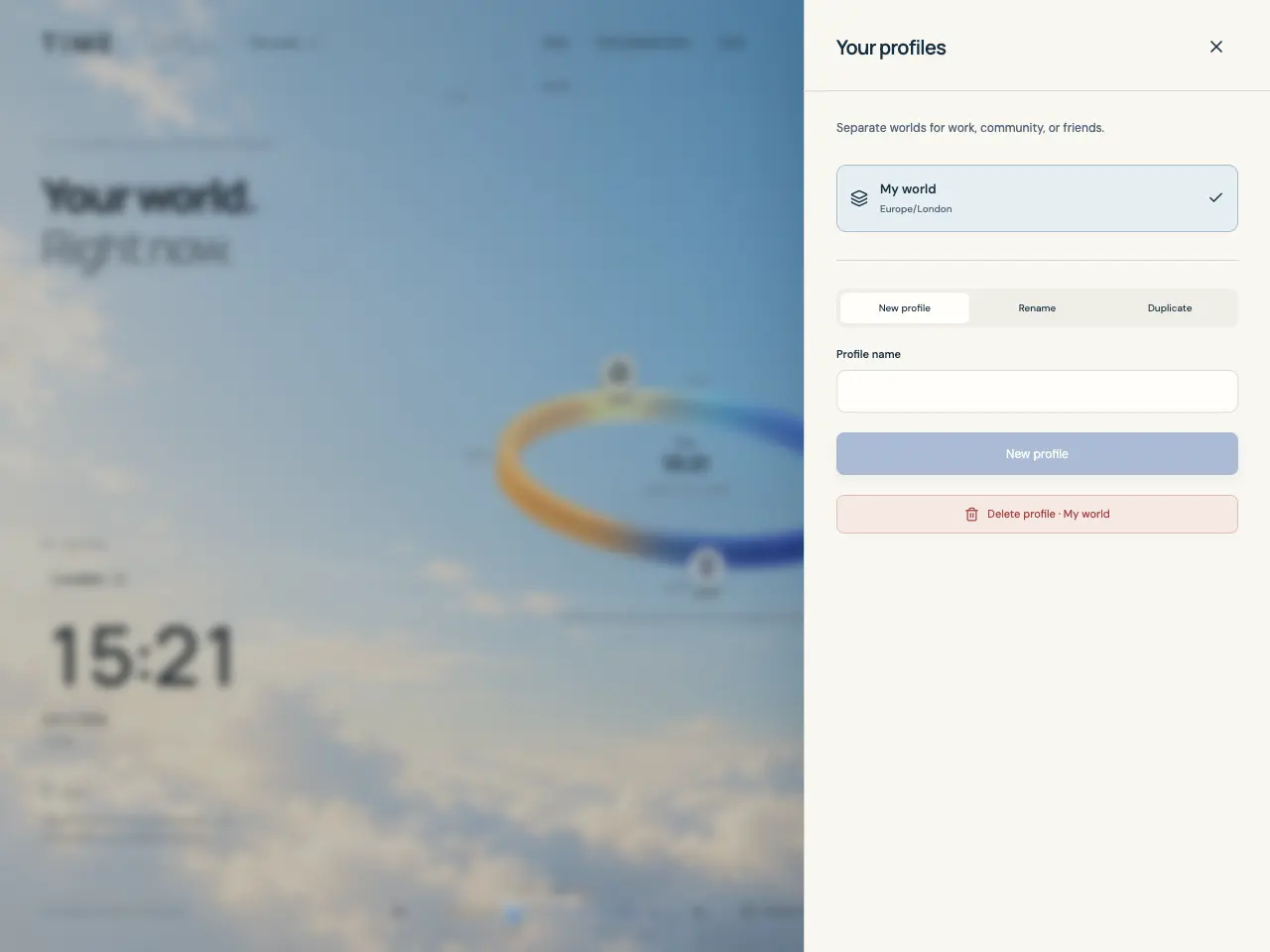
Create, switch, rename, or duplicate a profile
- Select the profile name in the header to open Your profiles. Select any listed profile to switch to it.
- Choose New profile, enter Profile name, and press New profile. The new profile becomes active and starts empty, with the device timezone and 24-hour display.
- To rename the current profile, choose Rename, edit Profile name, and press Rename.
- To start from the current setup, choose Duplicate, enter a name, and press Duplicate. It copies favorites, avatars, timezone, clock format, and saved filters, and makes the copy active.
Show the favorites you need
Filter changes which favorites appear in the list and orbit. Selecting multiple groups includes any of those groups; selecting multiple types includes any of those types. When both categories are selected, a favorite must match a selected group and a selected type.
- Choose Filter beside the favorites heading. In Groups, choose labels or Ungrouped; All removes the group restriction.
- In Type, choose People, Places, Organizations, or Cities; All removes the type restriction.
- Select Show followed by the matching count, such as Show 3, to apply the filter. Reset clears the draft choices; use Show again to apply them.
- After applying, remove individual filter chips or use Clear all. If the list has no matches, Reset filters shows all favorites again.
Create groups and move their members
You can assign Group directly while editing a favorite: choosing an existing name or entering a new name creates the assignment when you Save. For several favorites, use the group manager.
- Open Filter, then Manage groups. Choose New group, or select an existing group to edit it.
- Enter Group name and select Favorites in this group. A new group needs at least one favorite.
- If selected favorites already belong to other groups, check the move confirmation before saving. They move from those groups into this one.
- Select Create group or Save changes. Back on the filter screen, review the selections and use Show with the matching count to apply the view you want.
Recover a confusing or empty view
If a favorite disappears from the view, first check the profile name, then Clear all or Reset filters. The filtered count beside All favorites shows how many favorites are displayed out of the profile’s total.
Delete group removes its label from members, leaves the favorites in the profile as Ungrouped, and removes that group from active filters. Removing every member while editing an existing group opens the group deletion confirmation.
- To remove a group, open Filter → Manage groups, select it, choose Delete group, and confirm with Delete group.
- To check whether data is in another world, switch profiles from the header.
- If another tab removed the active profile, select an available profile. If data was cleared from browser storage, restore a JSON backup.