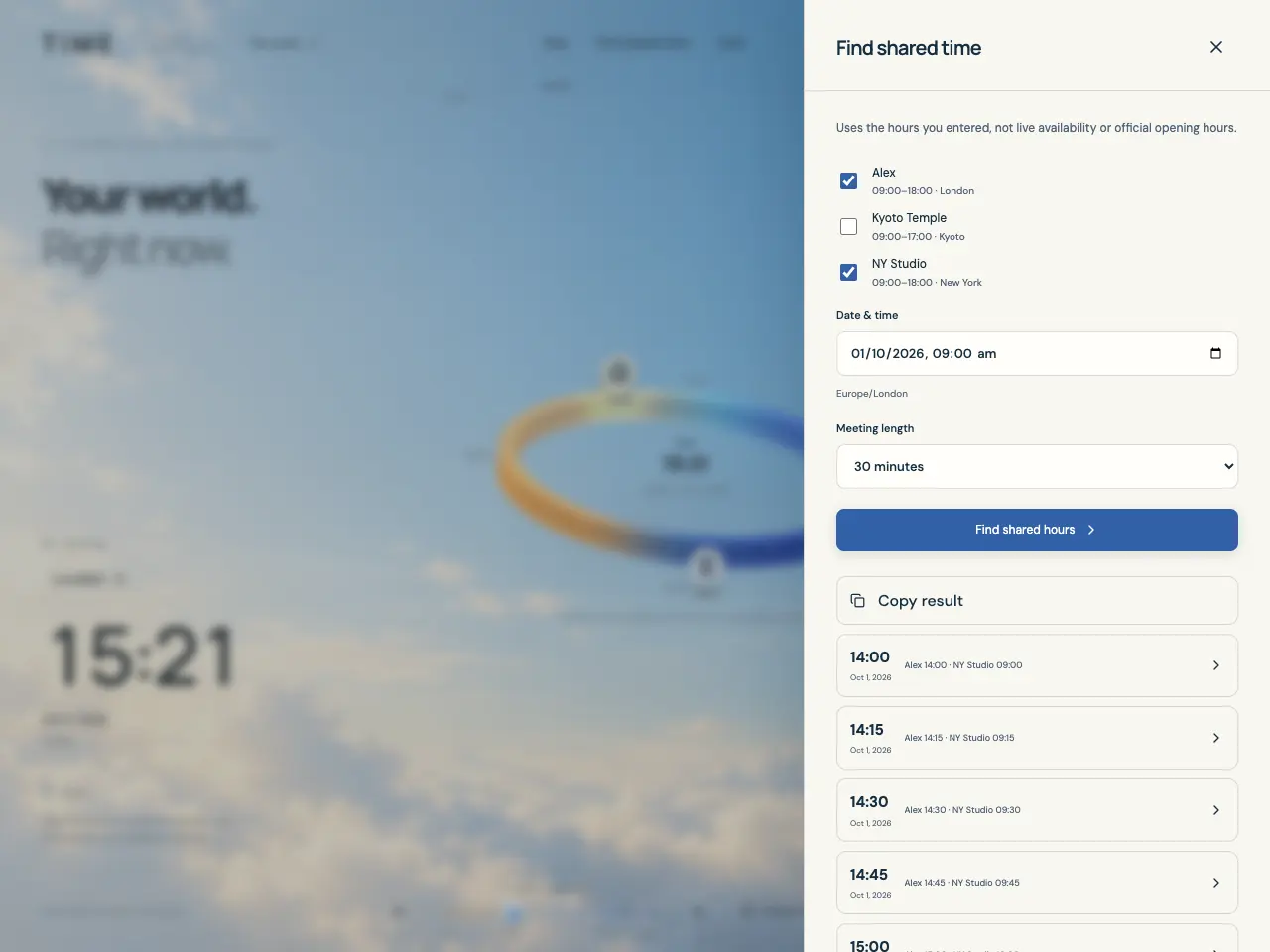
Example app screen. Times and favorites depend on your settings.
Move all clocks together
The time controls move every favorite to the same instant. Their local clocks can show different hours and dates. Exploring a time is a preview; it does not change the favorites’ saved timezones or chosen hours.
Drag the bottom time slider to explore between 12 hours before now and 24 hours after now.
Use Previous or Next, the arrow controls beside the slider, to move one hour at a time.
For a specific date, open Explore time from the time controls or Tools, enter Date & time in the displayed profile timezone, and select Show on the orbit.
Select Back to now to return to the current moment and resume live updates.
Resolve missing or repeated local times
When daylight saving moves clocks forward, some local times do not exist. Explore time and the shared-time planner reject those inputs; select a different local time.
When clocks move back, a local time may occur twice. The app asks you to choose Earlier occurrence or Later occurrence so the selected moment is unambiguous. UTC offsets are calculated for the selected instant, rather than treated as fixed year-round.
Search for a shared window
Find shared time compares the selected favorites’ daily From–Until ranges in their own timezones. All favorites in the current profile are initially selected, including ones hidden by view filters. Your profile’s timezone sets the input and result reference; it does not add your own availability as a participant.
First edit each participant’s favorite and Save appropriate From and Until hours.
Open Find shared time from the header, a favorite’s details, or Tools. Check the favorites you want to compare and uncheck the others.
Set Date & time as the search start in your profile’s timezone. Choose Meeting length: 15, 30, 45, 60, 90, or 120 minutes.
Select Find shared hours. If a repeated local time is detected, choose Earlier occurrence or Later occurrence.
Read and reuse the results
The search considers start times over the next 24 elapsed hours from your input, in 15-minute increments. The full meeting duration must fit within every selected favorite’s chosen hours. The panel displays the first 12 matching starts.
Read the large start time and date in your profile’s timezone, then the participant times shown underneath.
Select a result to show that instant on the orbit and inspect full local dates in favorite details.
Use Copy result to copy the displayed suggestions with UTC start timestamps, meeting length, and participant local dates and timezones.
Adjust a search that has no results
No shared window means no tested start in that 24-hour search fits all selected ranges for the requested length. It is not a claim that people are unavailable or a venue is closed.
Check that the intended favorites are selected and their timezones and From–Until values are correct.
Try a shorter Meeting length or a different search start. Edit chosen hours only when those changes reflect the ranges you intend to use.
For overnight ranges, put the later evening time in From and the morning time in Until. Equal values mean all-day availability.
If calculation fails, retry. If the planner has no favorites, add them to the current profile first.