Keep your company’s time zones together
A project check-in, handover or cross-office meeting can be awkward when each team reads a different clock. A dedicated Work profile keeps the offices and people you collaborate with in one saved setup, separate from your friends or other personal favorites.
Use the office clocks to understand the other team’s day, then use Find shared time to look for a full meeting within the hours everyone has agreed to use.
Create and configure your Work profile
Select the profile name in the header, open Your profiles and choose New profile. Enter a name such as Work or Product team, then choose New profile again. The new active profile starts empty with the device timezone and 24-hour display.
- Open the reference city/timezone control in the header and choose your own timezone. It sets the reference date and time used by the planner; it does not need to match your company headquarters.
- With the Work profile active, open Settings → Hours I can meet and set your own From–Until hours in that profile’s timezone. They save automatically to this profile.
- Choose Clock format in Settings if you prefer 12-hour or 24-hour clocks. The reference timezone, format, favorites, filters and meeting preferences belong to the profile; language is shared across the app.
Add the offices or people you work with
Choose Add favorite, give it a name such as London office or New York team, select the actual city/timezone result and choose Organization. For a colleague with individual contact hours, choose Person instead.
- Use a city or IANA timezone such as Europe/London or America/New_York. Give separate team or person favorites separate hours even when they share a timezone.
- Set From–Until in that favorite’s local timezone and Save. An office’s operating hours and a colleague’s contact hours are repeating daily ranges you enter, rather than an official schedule.
- Use a Group such as Project A when it helps organize your profile. Filters change the visible favorites; they do not select meeting participants.
Compare the teams for this meeting
Open Find shared time from the header or Tools, choose Date in your Work profile’s timezone and Meeting length, then open Compare to select every office or colleague needed for this meeting.
- Keep Include my hours on if you will attend. Turning it off leaves your timezone as a reference without requiring the meeting to fit your own chosen hours.
- Review the selected favorites and hours. Saved preferences can restore an earlier meeting setup; opening from one favorite’s details starts with that favorite. Add the other participants in Compare.
- Choose a 15, 30, 45, 60, 90 or 120-minute meeting. Tap a shared interval or move the selection to a fitting start on the 15-minute grid. The whole meeting must fit one common interval.
Example: a London and New York check-in
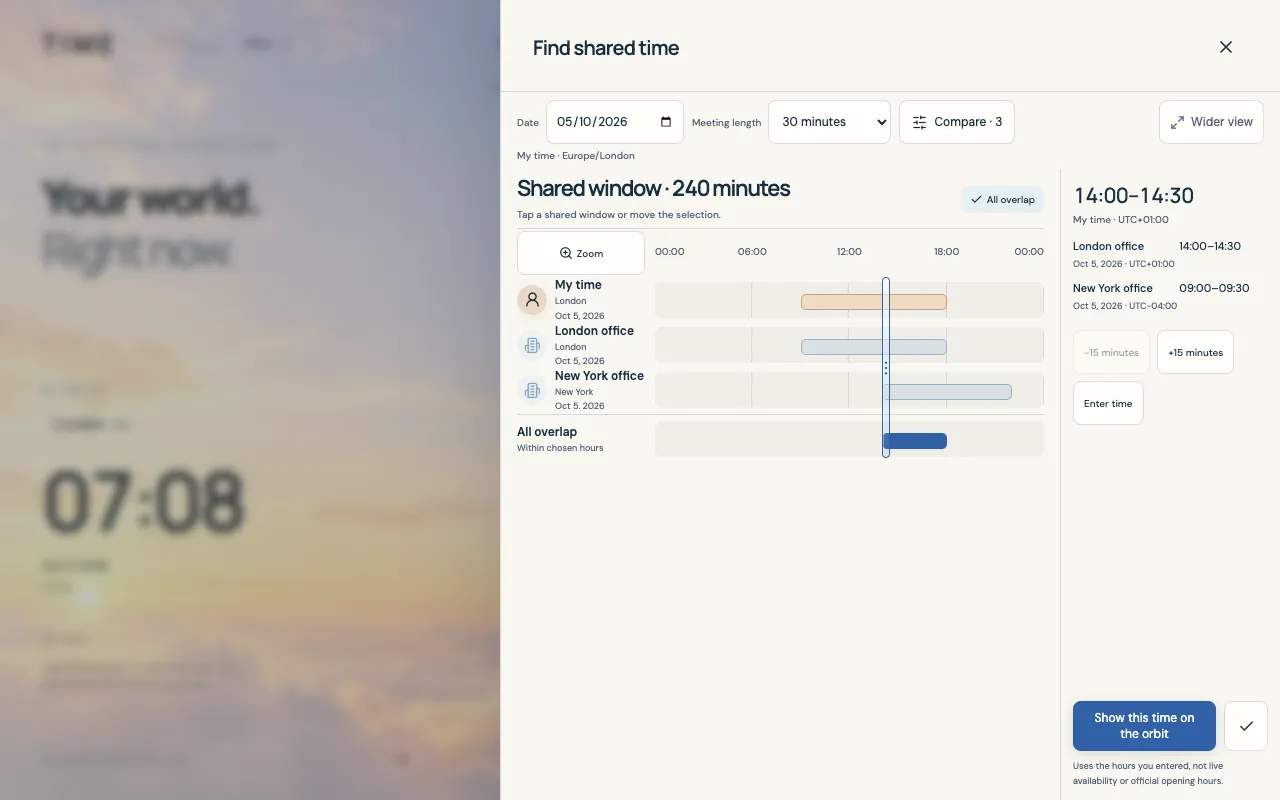
In a Europe/London Work profile, choose 5 October 2026. Set your own hours and London office hours to 09:00–18:00, and New York office hours to 09:00–17:00 in New York. Including your hours gives a common window of 14:00–18:00 in London.
A 30-minute meeting at 14:00 London time becomes the following local times. Use the actual meeting date; daylight saving can change the difference on another date.
| Office timezone | Local date | Local meeting time |
|---|---|---|
| London | 5 October 2026 | 14:00–14:30 |
| New York | 5 October 2026 | 09:00–09:30 |