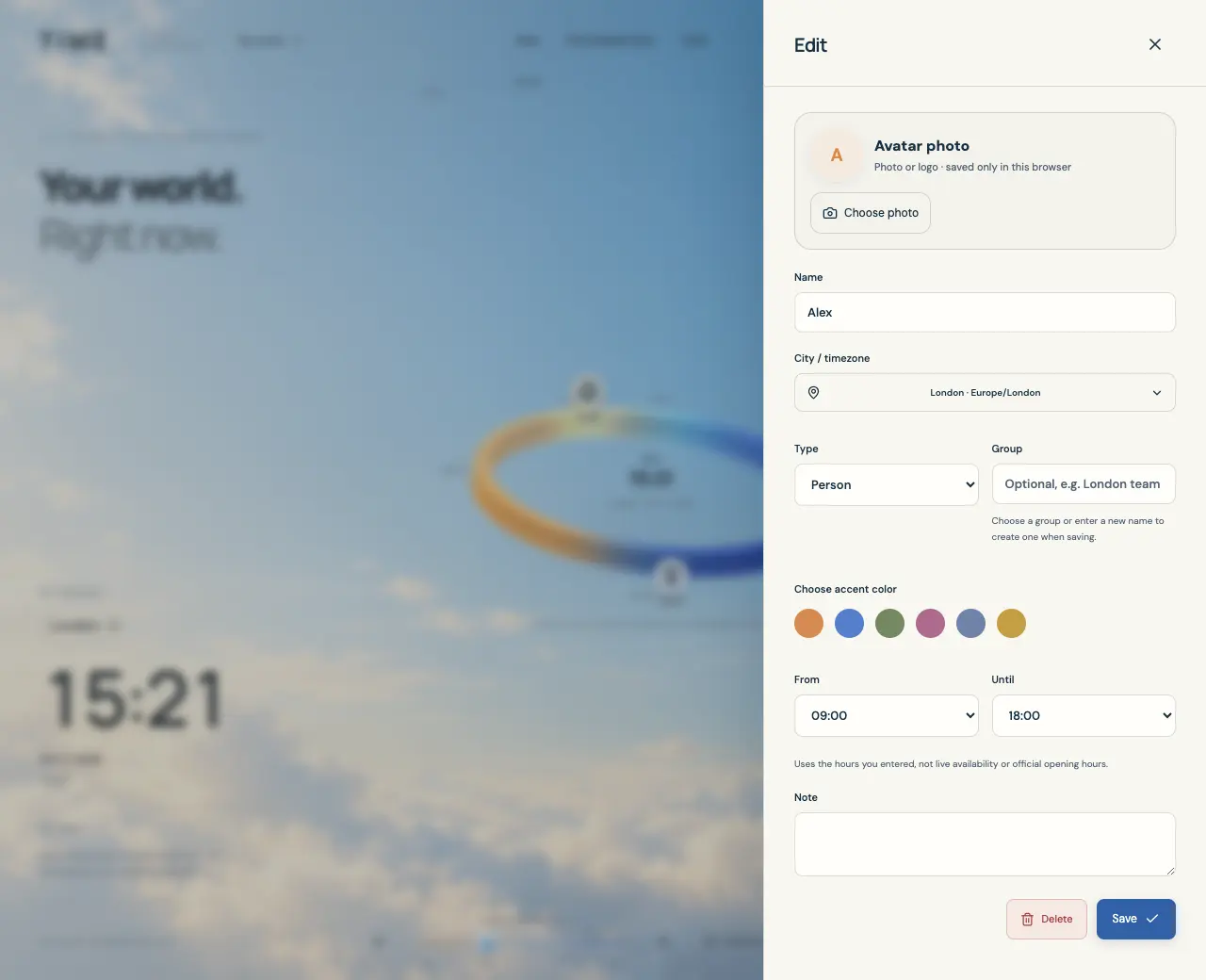
Create a favorite with a real timezone
A favorite belongs to the current profile. Its Name is your display label; City / timezone determines which local clock it uses. Type provides a category for filtering and the hours label in its details.
- Choose Add favorite and enter a Name.
- Under City / timezone, search for a city and select a result. You can also enter an IANA identifier such as Europe/London and select its result.
- Choose Type: Person, Place / temple, Organization, or City. Optionally set Group, an accent color, and Note.
- Choose Save. A name and valid timezone are required; typing a city search without selecting a result does not finish the timezone choice.
Enter the hours you want to use for comparisons
From and Until are interpreted in the favorite’s local timezone, in half-hour choices from 00:00 to 24:00. Details call these Contact hours for a person, Visit hours for a place, or Operating hours for an organization or city.
A range such as 09:00–18:00 includes 09:00 and ends at 18:00. A start later than the end, such as 22:00–06:00, crosses midnight. Equal start and end values mean all day, rather than an empty range.
- Set From and Until in the favorite editor, then Save.
- Open the favorite’s details to see Within chosen hours or Outside chosen hours for the displayed moment.
- Use Find shared time to compare these ranges with other favorites.
Choose, crop, and save an avatar photo
Avatar photo accepts a photo or logo from your device. The crop preview is circular; the app processes the chosen crop locally into a 256 × 256 avatar and stores the processed image after you save the favorite.
- In the favorite editor, select Choose photo and pick a JPG, PNG, or WebP image under 12 MB.
- Move the photo in the preview and adjust Zoom. The arrow buttons also move the photo.
- Select Use photo to apply the crop, then Save to save the favorite and its avatar. Save is unavailable while cropping or processing is unfinished.
- To remove an existing avatar, choose Remove photo and then Save. Cancel inside the crop editor dismisses that crop.
Edit, reorder, or remove a favorite
Selecting a favorite opens its details. Edit opens the form again; the three-dot menu beside a list row also offers Edit and Delete. Deleting a favorite removes it from the current profile after confirmation.
- For a quick order change, open a favorite’s details and use Move up or Move down.
- For several changes, open the list’s Manage favorites three-dot menu, then Reorder favorites.
- Drag the reorder handles or use the arrow buttons, then select Save order. Cancel leaves the previous order in place.
Keep photos and notes under your control
Photo selection and preprocessing run in your browser; the app does not upload avatar photos for processing. The saved avatar, name, group, and note remain in local browser storage. This does not make the data inaccessible to someone who can use your device or browser profile.
Exported backups include saved avatar images and the text you entered. A backup is a readable JSON file without app-provided encryption. Choose where you store it and share it only when you intend to share its contents.