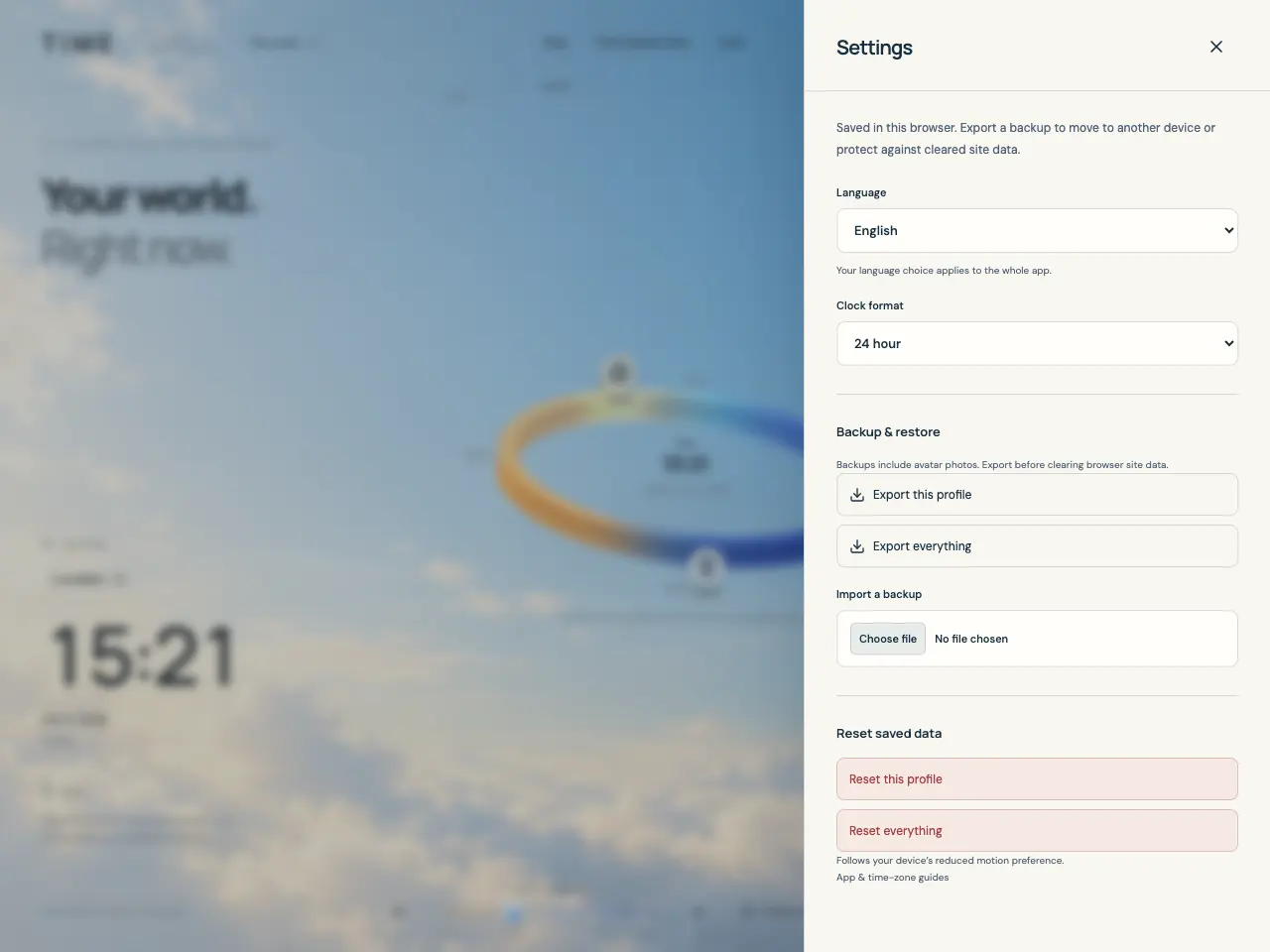
Export the data you want to keep
snowOrb Time stores its world in this browser’s IndexedDB. It has no account sync or automatic cloud backup. Export a file before clearing site data, changing browsers, moving devices, or resetting a setup you may want again.
- Open Settings with the header’s sliders icon and find Backup & restore.
- Choose Export this profile for the active profile and its favorites, or Export everything for all profiles and favorites.
- Keep the downloaded JSON file somewhere you can access independently of this browser. Backups include saved avatar photos and profile preferences as well as favorites.
Preview a backup and choose how to restore it
A file is checked before restore options appear. Backup preview shows profile names and counts of profiles and favorites so you can confirm you chose the intended export.
- In Settings, use Import a backup and choose a TIME backup JSON file. On another device or browser, first open the app there and select your transferred file.
- Review Backup preview, then choose Add as new profiles to keep existing data and add separate copies. Conflicting profile names receive a numeric suffix, and the first imported profile becomes active.
- Choose Replace all saved data only when you intend to replace every stored profile, favorite, avatar, and app setting with the backup. Export your current data first if you want to keep it, then read the warning and choose Confirm.
- After import, check the profile selector, favorites, and avatars. Adding profiles keeps the existing app language; replacing data restores the backup’s settings when included.
Reset only the browser-local data you intend to remove
Reset controls are in Settings under Reset saved data. They act on the app’s data in this browser, not on another browser or an exported file. There is no undo button; restore a backup if you need removed data later.
- Choose Reset this profile to remove its favorites, restore the device timezone and 24-hour format, and keep its name. Other profiles and the app-wide language remain available.
- Choose Reset everything to remove all profiles, favorites, saved avatar assets, and app settings, then start with one empty default profile.
- Read the confirmation and select Confirm only for the intended scope. Use Cancel to leave the saved data in place.
Install a dedicated app window when supported
Install app opens installation guidance. When the browser provides an install prompt, the panel offers Install app to open it. Installation support and the browser’s menu labels can vary.
- Open the app online and allow the first complete load, then choose Install app in the header.
- If the panel offers an install button, choose it and follow the browser prompt.
- Otherwise follow the panel’s guidance: use the browser menu’s Install app or Add to Home Screen. On iPhone or iPad, the guidance is Share → Add to Home Screen.
Use the core tools offline and apply updates
After the first complete load, cached core app tools can work offline: compare saved favorites, explore time, and convert timestamps. Cache or site-data removal can require a new online load. Public guide pages are separate from the core app, so do not assume every guide is cached offline.
If the app shows Update available, choose Reload to update when you are ready. Save any open edits before reloading, and keep a JSON backup for your stored world.