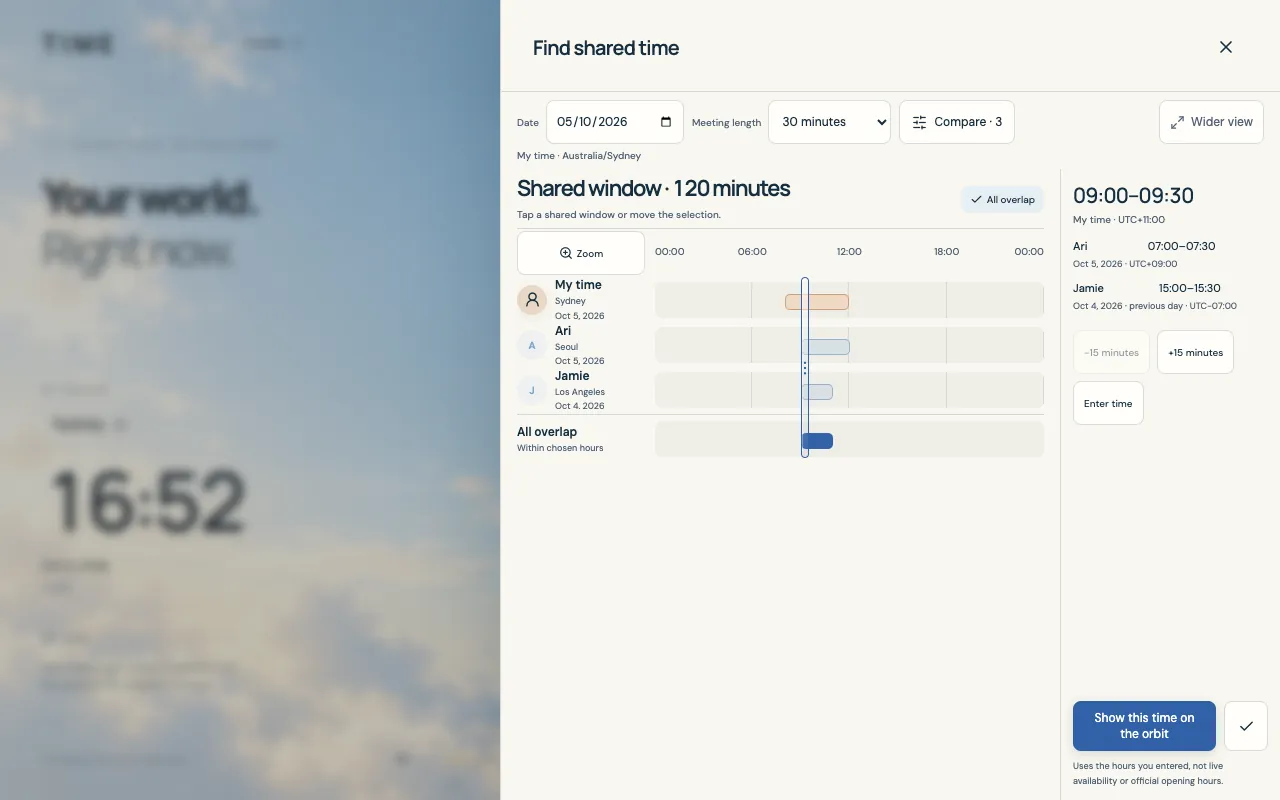
Example app screen. Times and favorites depend on your settings.
Spend less time asking “what time is it there?”
A friend abroad, a group Zoom meeting or a video catch-up can begin with a long exchange of local times. Time puts everyone’s chosen hours on one timeline so you can look for a window that fits the whole group.
Save friends once, choose a date and call length, then check the local date for each person before sharing the plan. The same workflow also suits online study groups and remote family catch-ups.
Keep your group in a Friends profile
Use your current profile or create a separate Friends profile. Set its reference timezone to yours, then add each friend as a person favorite with the city or timezone where they are.
Give each friend a recognizable name. A photo is optional; several friends can share the same timezone and still have separate chosen hours.
Ask when they are usually happy to talk, then save those From–Until hours in their own local timezone. Use your own chosen hours too, rather than assuming the default workday suits a social call.
Switch to the intended profile before opening the planner. A group filter helps organize the favorites view, but does not decide who joins the comparison.
Choose everyone who should be on the call
Open Find shared time from the header or Tools. Choose Date in your profile’s timezone and Meeting length, then open Compare to choose the people.
Select every friend for this call. Opening the planner from one friend’s details starts with that friend; use Compare to add the others.
Keep Include my hours on when you will join. Set your own From–Until hours and review the selected friends’ hours. Changes to a friend’s hours update their saved favorite.
Choose a realistic Meeting length: 15, 30, 45, 60, 90 or 120 minutes. The whole call must fit inside a shared window.
Pick a window that works for the whole group
The timeline shows each selected person’s chosen hours and the common intervals. Tap a common interval or move the selection to preview a fitting start; the local results below show what that moment means for everyone.
Check the chosen date and call length, then select a start inside the shared interval. Starts use a 15-minute grid.
Read each person’s local date as well as the time. Use Zoom for a closer look at the same timeline; it does not start a Zoom meeting.
Use Show this time on the orbit if you want to see the selected start in the main app. Until then, selecting a time is a preview.
One call, two local dates
For this example, choose 5 October 2026 in an Australia/Sydney profile. Your hours are 08:00–12:00, a Seoul friend’s are 07:00–10:00 and a Los Angeles friend’s are 15:00–17:00. Including everyone gives a shared window of 09:00–11:00 in Sydney.
A 30-minute call starting at 09:00 in Sydney looks like this. The Los Angeles friend joins on the previous calendar date; none of these times means a different call.
Example · 30-minute call · 4 October 2026, 22:00–22:30 UTC
Participant timezone
Local date
Local call time
Sydney
5 October 2026
09:00–09:30
Seoul
5 October 2026
07:00–07:30
Los Angeles
4 October 2026
15:00–15:30
Copy the time into your group chat
Use Copy selected time to copy the call’s UTC start/end, length and local dates, times, offsets and timezone names for your reference timezone and selected friends. Paste the result into your group chat and ask everyone to confirm their own local date.
Share the copied times with a short message such as “Does this 30-minute call work for everyone?”
Create the Zoom or other video-call link separately and add it to the conversation after agreeing on the time.
Next time, return to the same profile, check the participants and choose the next call date. Saved daily hours are a starting point, not a live RSVP.