An interview needs a complete time reference
An invitation that says only Tuesday morning or ET leaves room for confusion. Ask the recruiter for the interview's full date, clock time and host city timezone before arranging your preparation. If ET is used, confirm the intended date in New York.
A precise start is only part of your plan. Find out how long the interview may run and whether an early connection check is expected. Keep preparation and recovery time in your own plan rather than assuming a free start means the whole interview fits.
Prepare the two clocks you need
- Set the profile's own timezone to where you will take the interview. This is the zone used by the app's local date inputs.
- Add the recruiter as a person or the hiring office as an organization, selecting the confirmed host city timezone rather than a guessed offset.
- Keep your own city visible, and use a separate interview profile if several employers would otherwise become hard to distinguish.
- Confirm the source date and time with the host. For a supplied timestamp, use the app's converter with its explicit offset or UTC marker.
Try a fictional New York interview
A fictional recruiter proposes 2 November 2026 at 09:30 in New York. The comparison below pairs London with New York. Read the London date and time together; this is a worked example, not an actual interview invitation.
One interview start, two local dates
Check both city cards and their dated offsets. Use the example button to carry this exact start into the app before adapting the plan.
LondonEurope/London
- Time in London
- 14:30
- Date
- UTC+00:00
New YorkAmerica/New_York
- Time in New York
- 09:30
- Date
- UTC-05:00
This opens a temporary view. Save as a profile only if you explicitly choose to keep it.
Build a practical interview window
- Open the dated example with its own button. For your interview, convert an ISO timestamp with an explicit offset or Z, or a Unix timestamp. If you only have the host's date and clock time, first switch the profile's own timezone to the host city, then enter that date and time in date exploration. Keep your own city as a favorite to read the result.
- Read your city's complete calendar date. If conversion crosses midnight, put preparation on the correct local day and confirm the date back to the recruiter.
- Manually choose your available hours and the interview duration in the meeting tool. Reserve preparation and connection buffers yourself around any candidate you consider.
- Send your confirmation through your usual communication channel, stating the agreed host time and your local date. A temporary read-only comparison can help explain the same moment.
Recheck when the invitation changes
If the host reschedules, reconvert the new date rather than applying a remembered difference. Daylight saving and your travel location can change the result. Return to your saved interview profile to compare the corrected start.
A shared view is temporary; retain the setup only by explicitly saving a profile. Basic saved comparisons work offline after caching, with optional Google Drive sync when connected.
Time-zone references
Facts / sources checked ·
snowOrb Time
Keep the people behind the time zones
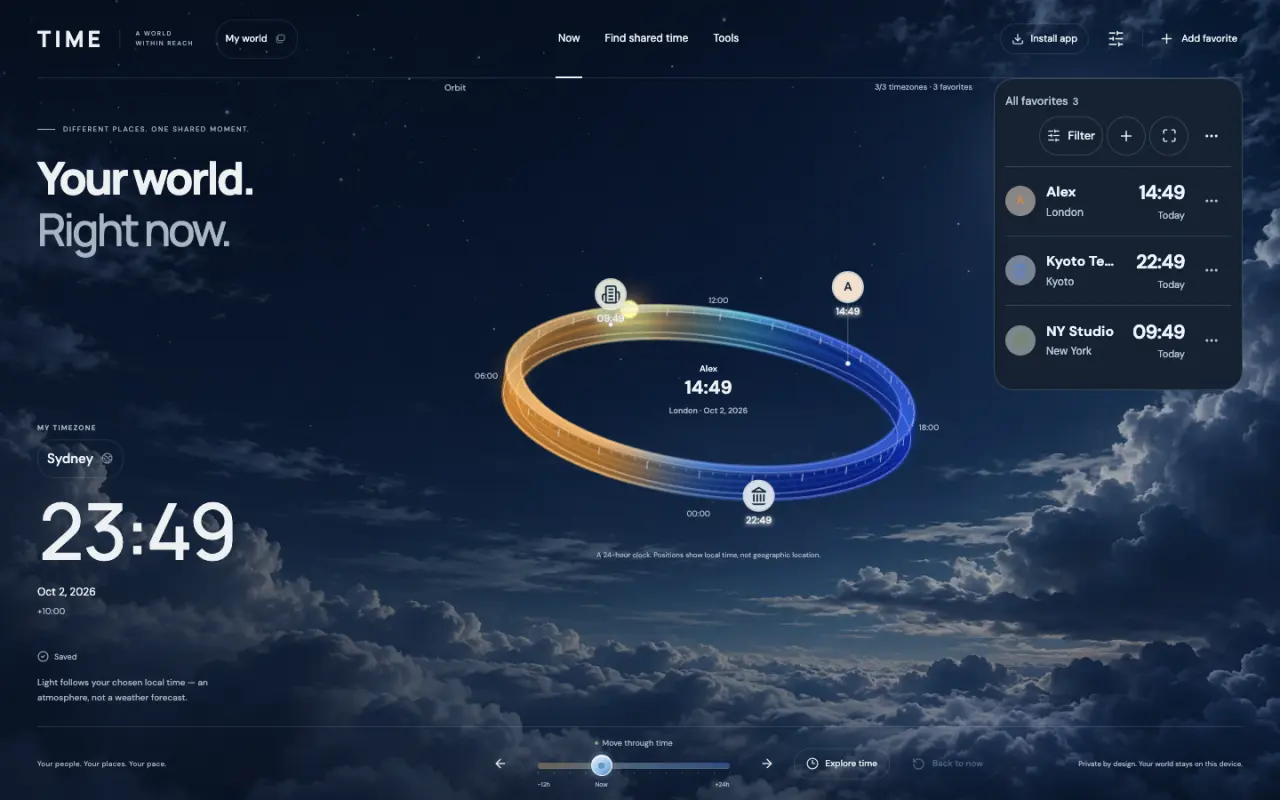
snowOrb Time is a visual time zone tool: compare local clocks on a 24-hour orbit and keep your people and places together.
Named favorites, separate profiles
Save people and places by name, with their city and chosen hours. Keep work and friends in separate profiles to reuse each group.
Compare everyone’s entered hours
Choose a date and duration to compare all selected participants’ available hours. Local dates and daylight saving count; calendar bookings are not checked.
Local use, sharing and optional sync
After app and data setup, use the core tools offline locally. Share a link for a read-only recipient preview. Connect Google optionally to sync across your account’s devices.
Opens the app’s temporary view so you can continue comparing without saving. To keep these cities, use the save control in the app header and confirm. Basic use needs no account.