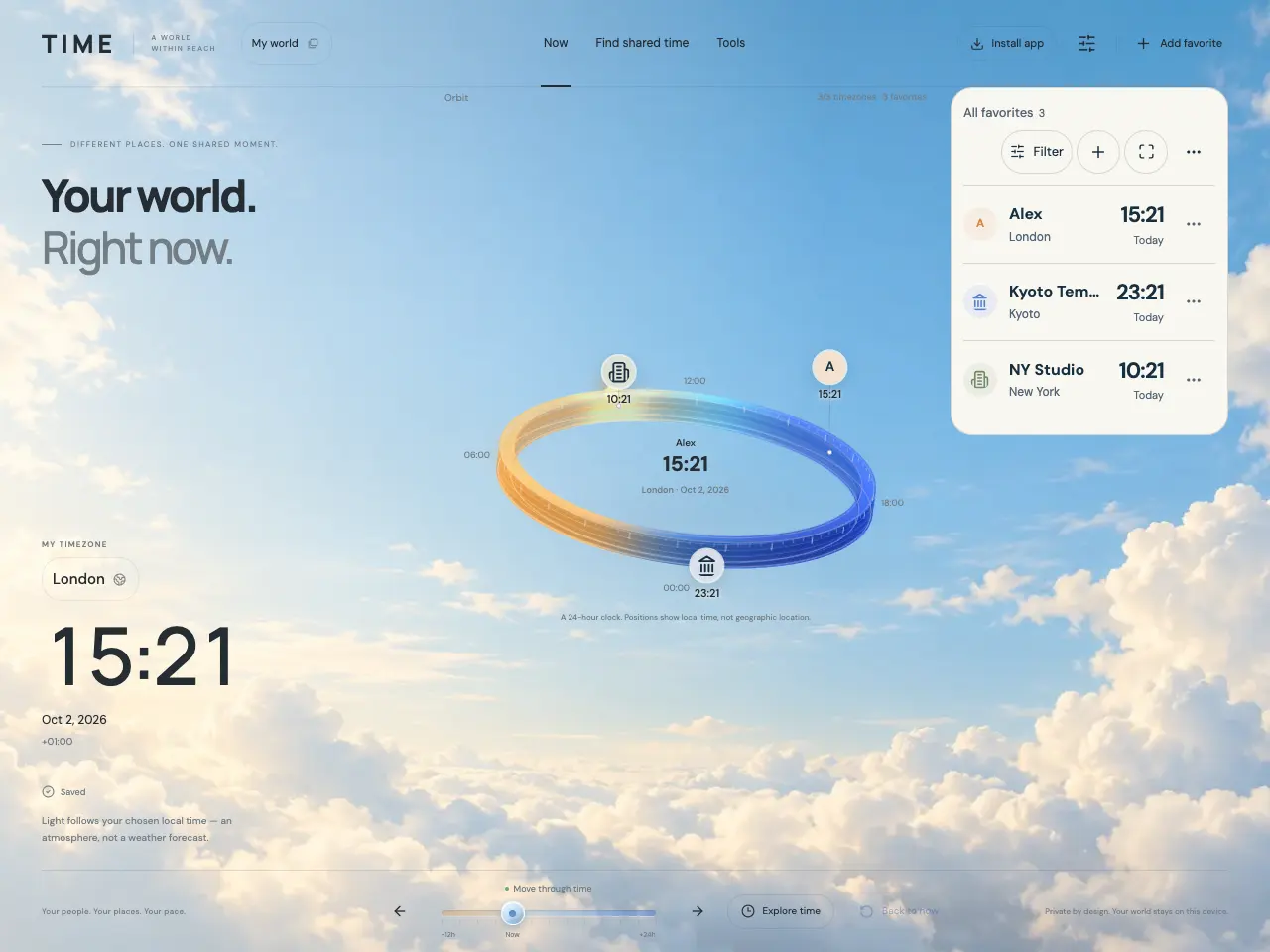
Open the app and make the examples yours
Open the main app at /. These public guides are separate pages; return to the app to change your world. On a first visit, the app creates a My world profile using your browser’s device timezone and a 24-hour clock.
Alex, Kyoto Temple, and NY Studio are sample favorites. Their chosen hours are examples, not verified contact or opening hours. Edit them into your own people and places, delete them, or create an empty profile.
- Select a favorite to open its details, then choose Edit to change it.
- Choose Add favorite to add your own person, place, organization, or city.
- After saving, check for Saved. If a save error appears, retry the change before leaving.
Set the timezone you want to compare against
The timezone button under MY TIMEZONE controls the current profile’s own clock, date comparisons, and the local date/time inputs in the tools. Each favorite keeps its separately chosen timezone.
- Select the timezone name under MY TIMEZONE to open Choose timezone.
- Use Search cities and select a result, or enter an IANA timezone such as Asia/Seoul and select its result.
- Choose Use device timezone to use the browser’s configured zone. For location lookup, choose Use current location, allow access if you wish, then confirm with Use this timezone?.
Read one moment across several places
The orbit is a 24-hour clock: an avatar’s position represents its local time. Favorites in the same timezone can share a marker; open the marker and choose a member to see details. The orbit is not a geographic map.
On compact screens, use Orbit and Favorites to switch views. The list shows each favorite’s local time and a day label. Today, Tomorrow, and Yesterday compare its date with your profile’s date at the displayed moment, including while exploring another time.
- Select a favorite in the list or orbit to check its full date, timezone, UTC offset, note, and chosen hours.
- Use Expand favorites, the expand icon beside the list controls, when you want more room for the list.
- If a favorite seems missing, check the active profile and the Filter control. The list is also useful when many orbit markers overlap.
Choose language and clock format
Open Settings using the sliders icon in the header. Language changes the whole app; Clock format changes the current profile. A different profile can therefore use a different clock format.
- In Settings, set Language to English or 한국어.
- Set Clock format to 12 hour or 24 hour.
- If you moved the time slider or opened another moment, select Back to now to resume the live clock.
Understand where your setup is saved
Profiles, favorites, preferences, and processed avatar photos are saved in this browser’s IndexedDB storage. There is no account sign-in or account sync. Another browser, browser profile, or device has its own saved world.
Saved means the latest change reached browser storage. It does not mean a cloud backup exists. Export a JSON backup from Settings before clearing site data or moving devices.